

How to Build Substack Perks for Your Subscribers
I just spent the evening figuring it out so you don't have to.

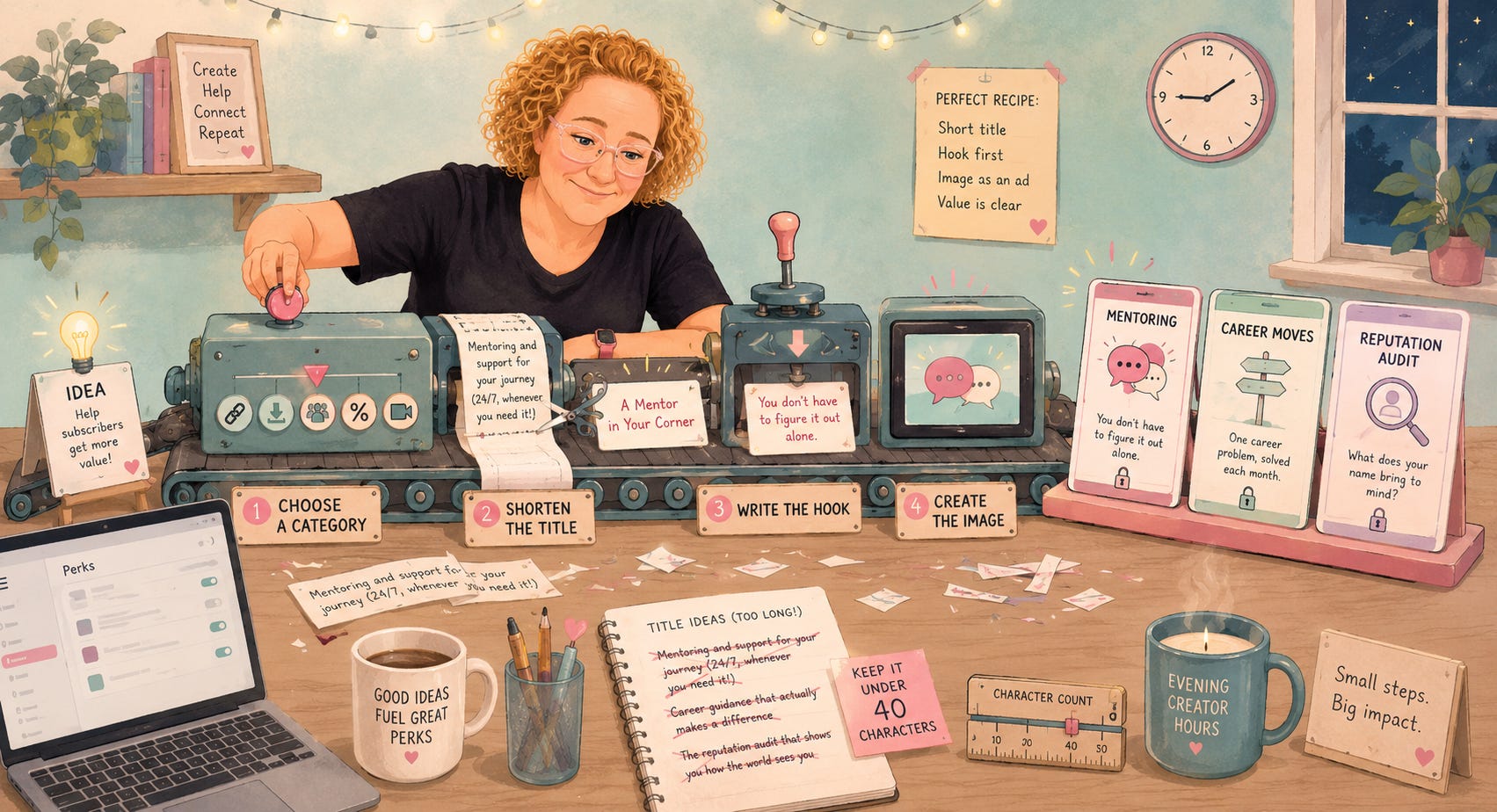
Substack recently added a new feature called Substack Perks. They are extras for paid subscribers, like discount codes, downloads, or community invites, that live on a dedicated Perks tab.
I just spent the evening building out the subscriber perks for Code Like A Girl, and I learned a few things while doing it that you all might find helpful.
Where to Find Substack Perks in Your Dashboard
First, you need to find where to create the perks. It’s a bit buried in dashboard settings, so here are the steps to find it.
In the bottom-left corner of your dashboard, click Settings.
Use your browser’s Find in Page (Cmd+F or Ctrl+F) to search for “Subscriber perks”
Click the Manage button on the right of the words Subscriber Perks.
Click Create Perk
The 5 Substack Perk Types Explained.
Once you hit Create Perk you will be shown 5 different types of perks you can choose from.
Your options are:
Discount or promo code: a code redeemable for a discount or deal
Digital download: a file your subscribers can download: PDF, ebook, and more
Community invite: access to a private space: Discord server, group chat, or forum
Link: a private link to an online resource
Substack live video: unlock a scheduled live video for your paid subscribers
When building your perks, you need to think about which category actually fits what you’re offering.
How to Create a Perk (Title, Image, Description)
Each perk needs an image, a title, and a description. A few things I learned the hard way:
Skip the White Space in Your Description
When the Perk page renders it, all the white space is removed, so there’s no point adding it.
Keep Your Title Short
When viewed on the perk page, a long title wraps around a lot. I figured out that with 40 characters it only wraps once. So I would aim for that.
Make the First Line of Your Description a Hook
What Substack doesn’t tell you is that it takes the top line of your description and turns it into something like a subtitle on the perk.
You’ve got about 40 characters to make that first line work as a subtitle hook.
Make the Image an Ad
Your perk image should be 1200 by 800 pixels, and think of it as an ad for the perk, not just a decoration.
I made mine in ChatGPT. I told it the image was an ad for a subscriber perk, gave it the title and description, and asked for a layout with text on the left and an image on the right.
My Three Perks
Here's how I picked a category and hook line for each, so you can see the thinking and copy it for yours.
Perk 1: A Mentor in Your Corner
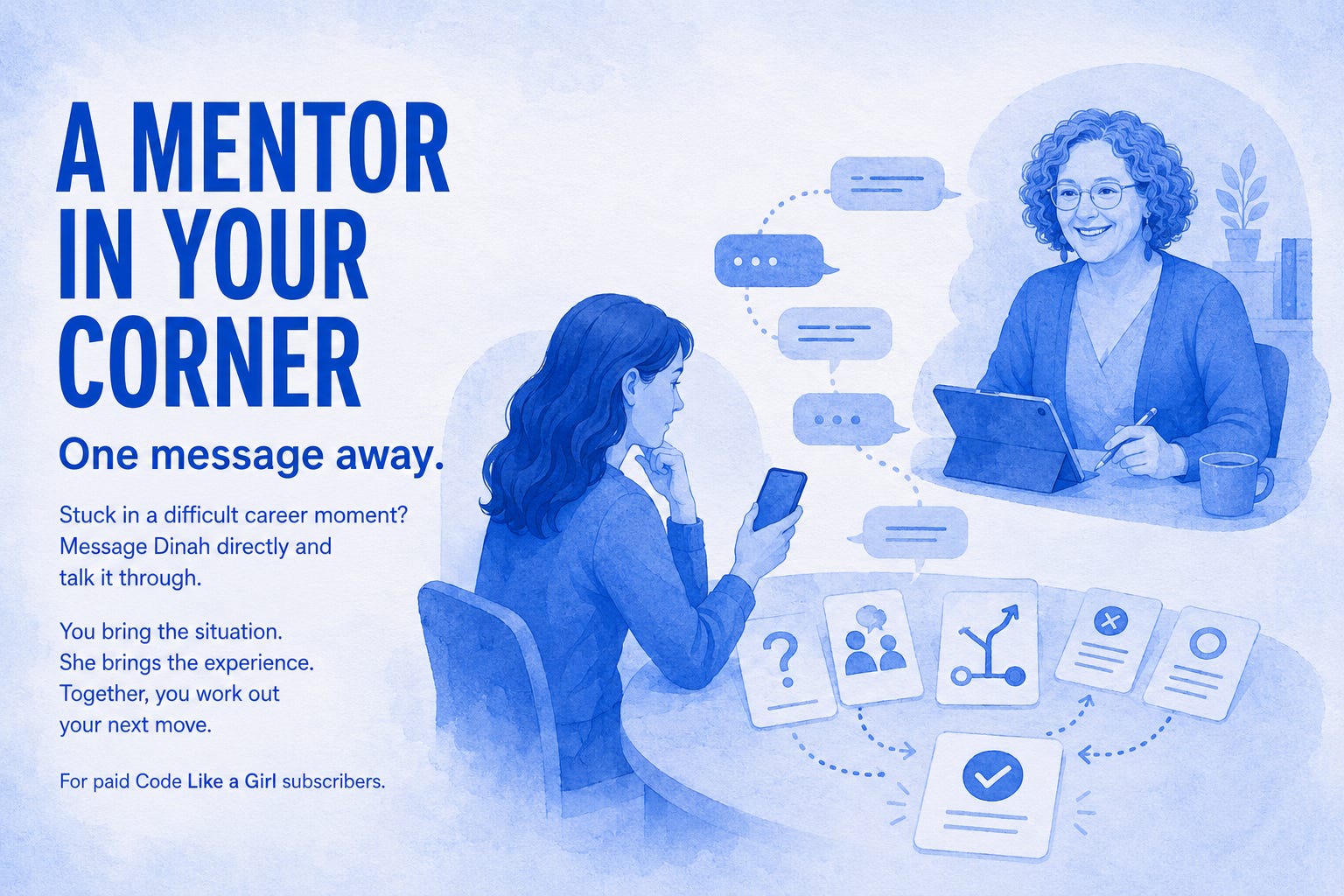
Category: Community invite
Who it’s for: Paid Subscribers
What it is: Direct Messaging mentoring.
Where it goes: Links to my Code Like A Girl profile page, where a subscriber hits “Message”
Hook line: You don’t have to figure it out alone.
Mentoring via DM from me is part of the paid subscription on Code Like A Girl, and it's listed on our subscribe page. I wanted to mention it here too, since people who came to the publication may have skipped past the paid offering on the subscribe page, or subscribed through a recommendation and never saw it at all.
Perk 2: Career Moves for Women in Tech
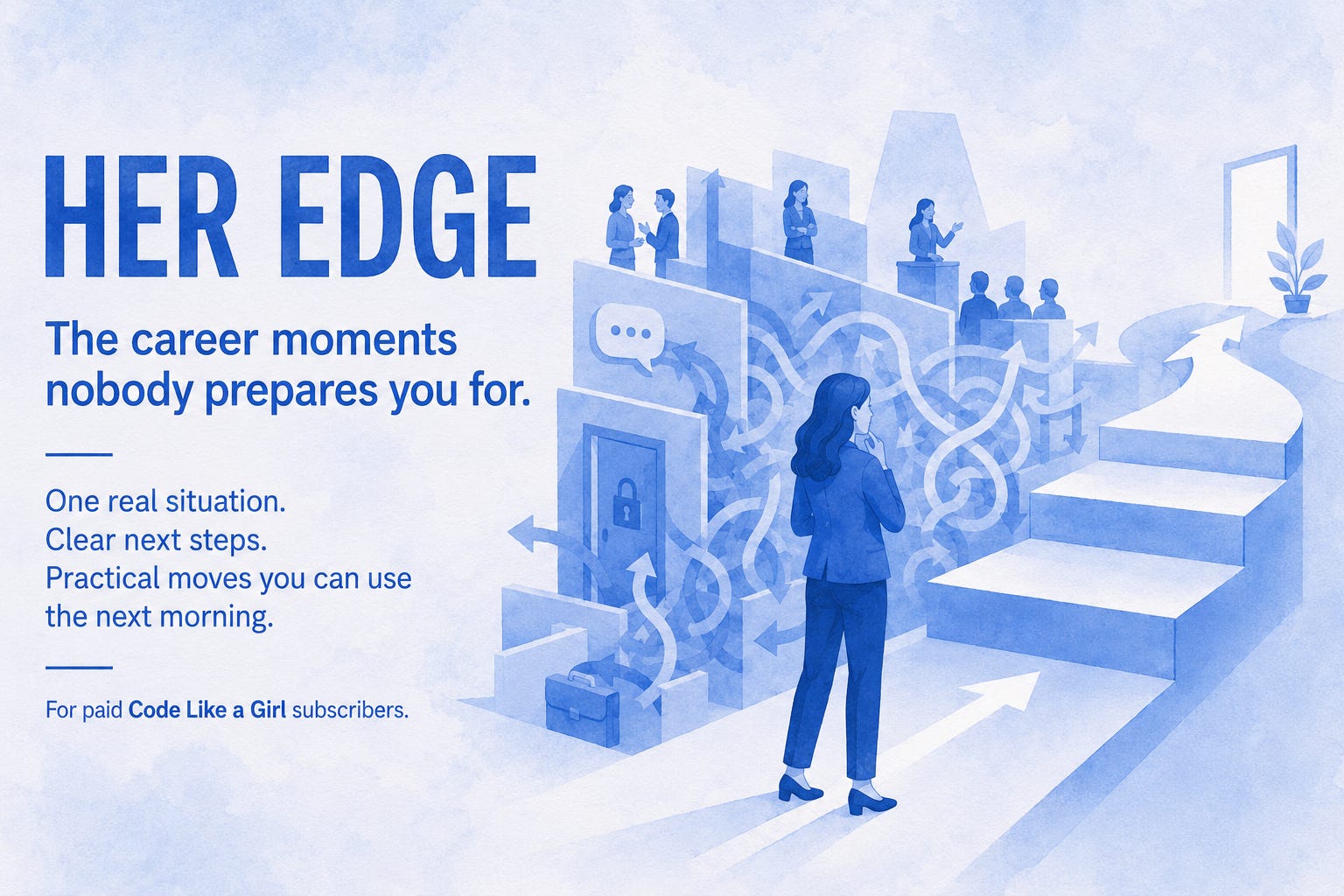
Category: Link
Who it’s for: Paid Subscribers
What it is: A monthly paid career coaching column called Her Edge that I write.
Where it goes: The Her Edge section (https://codelikeagirl.substack.com/t/her-edge)
Hook line: One career problem, solved each month.
This is also on our paid subscription page, but again I wanted to include it on the perks page so that all benefits for paid subscribers were listed in the same place.
Perk 3: The Reputation Audit: A Custom Claude Skill
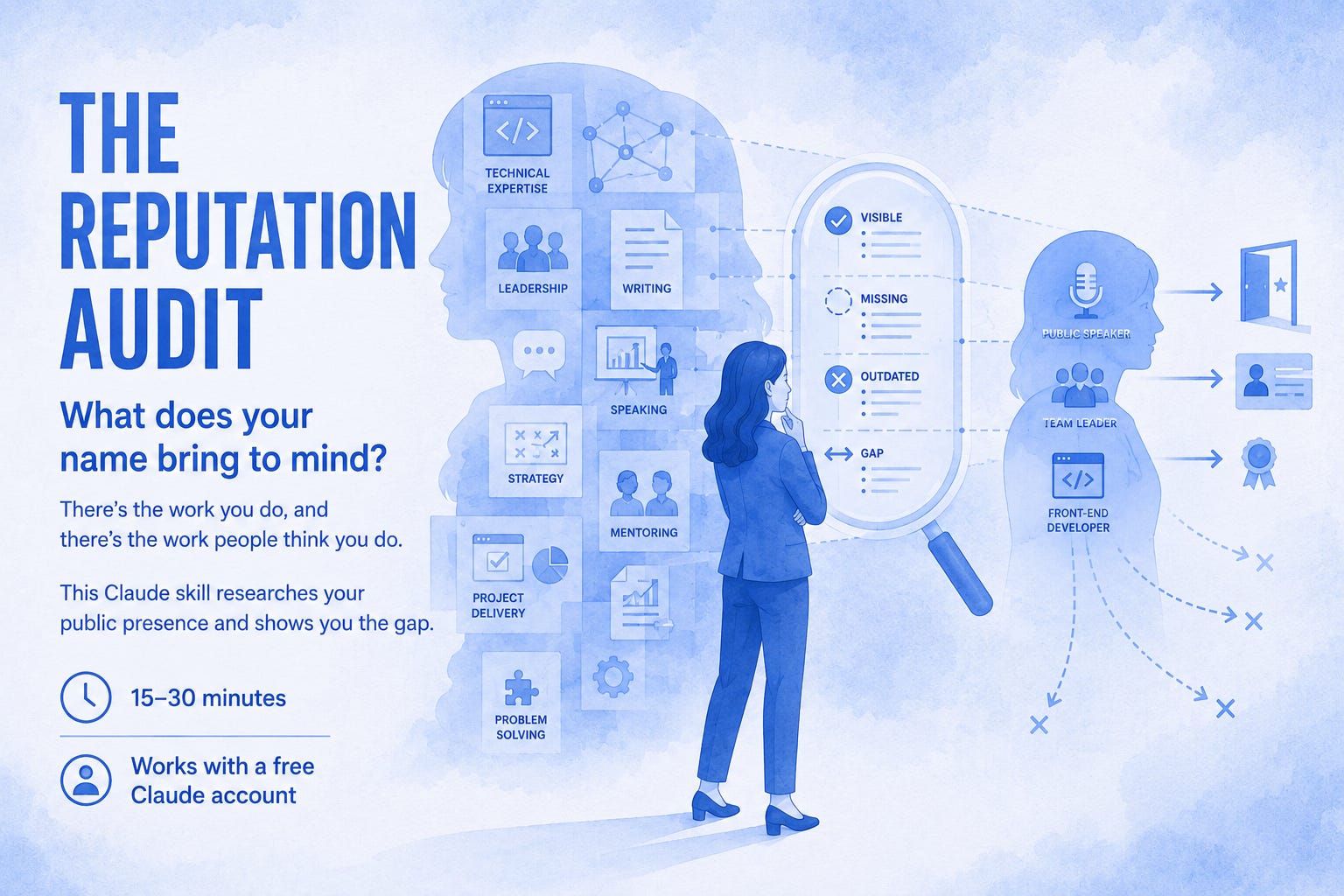
Category: Digital download
Who it’s for: Paid Subscribers
What it is: A Claude skill that researches your public presence and shows you the gap between the work you do and what people think you do. Takes 15–30 minutes and works with a free Claude account.
What downloads: A PDF explaining how to get the skill, with a link to the skill inside the PDF
Hook line: What does your name bring to mind?
I created this Claude skill as part of an article I posted for paid subscribers this week.
I have had more people convert to paid on this article than any other, and I suspect the skill has something to do with it. So I thought it would be a good idea to highlight it on the Perks page.
If you have a digital artifact in a paid post that's converting readers, consider featuring it on the perks page.
The Perks Page and Navigation Bar
Once you have created your first perk, it might take a few minutes for it to show up on your publication’s navigation bar. It did for me.
But you can manually check that it is turned on with these steps.
In the bottom-left corner of your dashboard, click Settings.
Use your browser’s Find in Page (Cmd+F or Ctrl+F) to search for “Navigation bar”
Scroll down to find Perks, then make sure it is toggled on.

The edit button in the navigation bar lets you change what the perks tab is called in the navigation bar on your website. I left mine as perks.

That’s All Folks
Building them out took an evening, but now everything we offer Code Like A Girl paid subscribers lives in one place instead of scattered across the subscribe page and lost in paid posts.
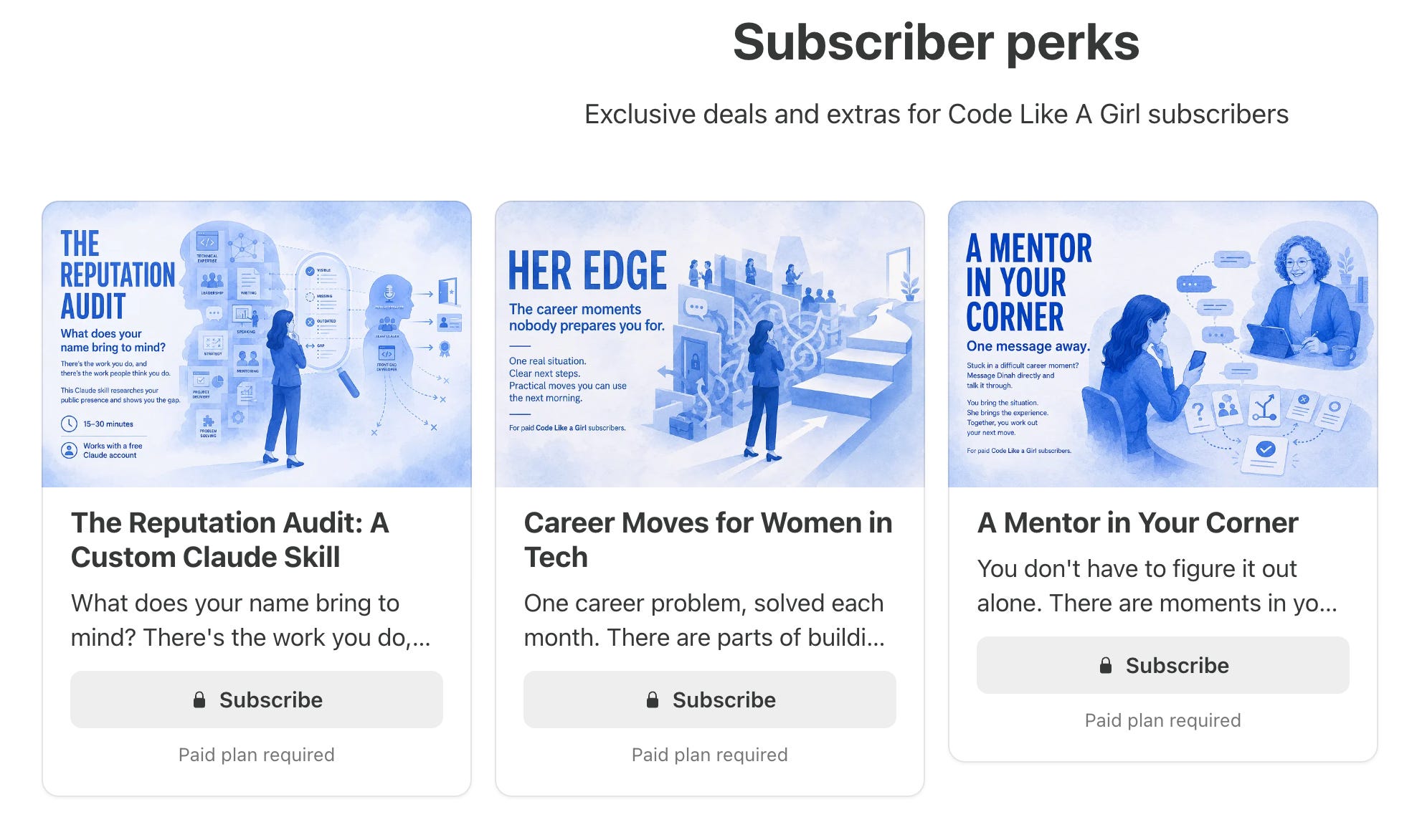
The feature is a bit buried, and there are some quirks, but a good perks page does something a subscribe button can’t: it shows people exactly what they get before they have to decide.
Go build yours. Then drop it in the comments so we can all take a look.
I Clicked Every (Okay, Almost Every) Button on Substack — Here’s What I Found

A practical, lighthearted tour of Substack’s hidden features, small tweaks, and quietly powerful tools that make publishing easier and less stressful.
From hiding stats and customizing welcome emails to using recommendations and SEO more intentionally, this piece is about building a healthier relationship with the platform and staying sane while you grow.
Is Your Substack Actually Doing What You Built It To Do?

You can do everything right and still watch a post go nowhere. That's not a failure of effort; it's a failure of feedback. Here's the one prompt I run every month to find out what my Substack is actually doing versus what I assume it's doing.
How I Broke Big Tech’s Grip on My Life in Four Steps

Have you ever searched for something and then seen an ad for that exact thing minutes later? Every time it happens to me, I get so creeped out! The reality is that Big Tech is watching every move we make and trying its best to monetize it.
In this post, I detail four steps you can take to make your life more private without throwing out your phone and moving to a cabin in the woods.
First, I love the image 😊
Thanks for the clear steps in setting up the perks page. It's crazy that Substack doesn't do much in the way of announcing/sharing features for its users. It's not like they don't have our email address, lol.
Super helpful, thanks!
This is fantastic, Dinah. Definitely saving it to have by my side when I set up my perks next week. I think this is going to be a powerful way to let prospects better appreciate the value of a paid subscription.