


I joined Substack in February 2025 when I started Being Fearless, Being Me. It’s my space to write about anything and everything that matters to me. And honestly? I love it here. Maybe a little too much. Ok, definitely a bit too much! I mean, I run two full accounts!
After more than a decade on Medium, it’s been refreshing to find a platform that actually feels like a community again. In late August, I decided to bring Code Like A Girl, the publication I’ve been running for ten years on Medium over to Substack as well.
But even after 10 months, two publications, and dozens of posts, I’m still learning.
After writing some heavier pieces the past few weeks (you can find them here and here), I figured it was time for something a little more lighthearted.
So here’s a quick post with some of my favourite little tips, shortcuts, and features I’ve discovered in my first ten months on Substack.
If you’re new here, hopefully this helps you get up to speed a little faster. And if you’ve been around for a while, maybe you’ll still pick up something new.
The first place I found a few surprises was in the dashboard.
Hidden Gems in the Dashboard
There are a few hidden gems tucked away in Substack’s dashboard. Some of these took me months to stumble across, so let’s save you the trouble.
Each of these little discoveries has made my Substack experience a bit better,
(Quick note: the dashboard only exists on the web version of Substack. It’s in the left-hand sidebar of your home page.)
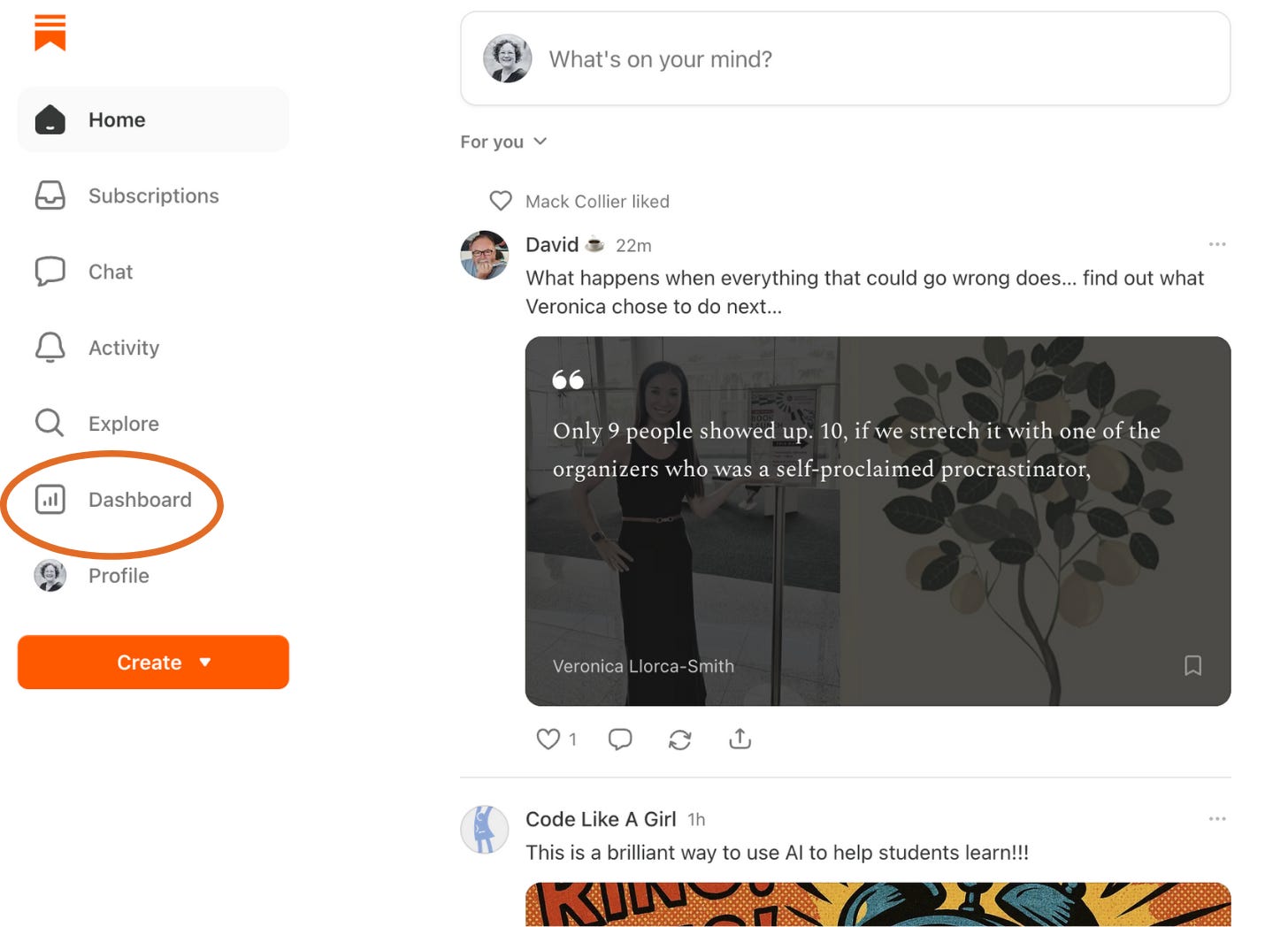
You’ll find yourself in your dashboard for all kinds of reasons, like checking story stats, editing drafts, or seeing what’s scheduled next.
But the first thing that hits you when you open it?
Those big, bold subscriber count numbers.
Hide Subscriber Count
Some numbers are better left unseen. They can start to creep into your sense of worth before you even notice.
For me, it’s the subscriber count. I’m learning not to give it so much power, the same way I finally stopped letting the bathroom scale decide how my day would go.
These numbers don’t define me, and I don’t need the stats or the scale taunting me every time I log in (or go to the bathroom). Checking them once in a while is healthy; obsessing about them is not.
Good news: there’s a deeply buried setting that lets you collapse those numbers into a tiny, polite button instead. Just how this Canadian likes it!
Here’s how:
In the bottom-left corner of your dashboard, click Settings.
Use your browser’s Find in Page (Cmd+F or Ctrl+F) to search for “Hide Stats.”
Toggle it on.
Now, at the top of your dashboard, there will be a small “Show Stats” button you can click when you actually want to see them.
Annoyingly, Substack turned this setting off on both my personal and Code Like a Girl dashboards yesterday, so I had to switch it back again. Fingers crossed it sticks this time.
It gives me a bit of sanity, not seeing these numbers each time I log in, especially when the number isn’t moving much.
Customize Your Welcome Email
Did you know that every time someone subscribes to your publication, Substack automatically sends them a welcome email?
When I first started signing up for other publications, I noticed these showing up in my inbox. They were like friendly little “hello’s” from writers I admired. What I didn’t realize at first was that I could write my own.
Hint: you absolutely should.
It’s the first email your subscribers will ever get from you, so it’s worth making it personal. Do you want it to feel business-like, a quick hello from a friend, or more like a warm hug?
It’s yours to customize.
Here’s How:
In the bottom-left corner of your dashboard, click Settings.
Use your browser’s Find in Page (Cmd+F or Ctrl+F) to search for “Welcome emails.”
Use the edit button to customize emails for free, paid, imported and founding subscribers.
As for the content of a good welcome email, A Slow Living Path has a great post about that.

Customize your Welcome Page
Have you ever clicked on a new publication and landed on their welcome page instead of the publication itself?
You know the one, it usually has a picture, a short blurb, and a sign-up button with your email already filled in. And just below that, there’s another button that lets you skip subscribing and go straight to the publication instead.
I always wondered how some people had really cute button verbiage.
For example, the How to Grow Today Publication has a button that says
I don’t want to grow.
Naturally, I wanted one of those fun buttons too!
Here’s How:
In the bottom-left corner of your dashboard, click Website editor.
On the left panel choose Welcome Page.
You can customize your whole welcome page here, but the last item is the Skip button! It has to be less than 25 characters.
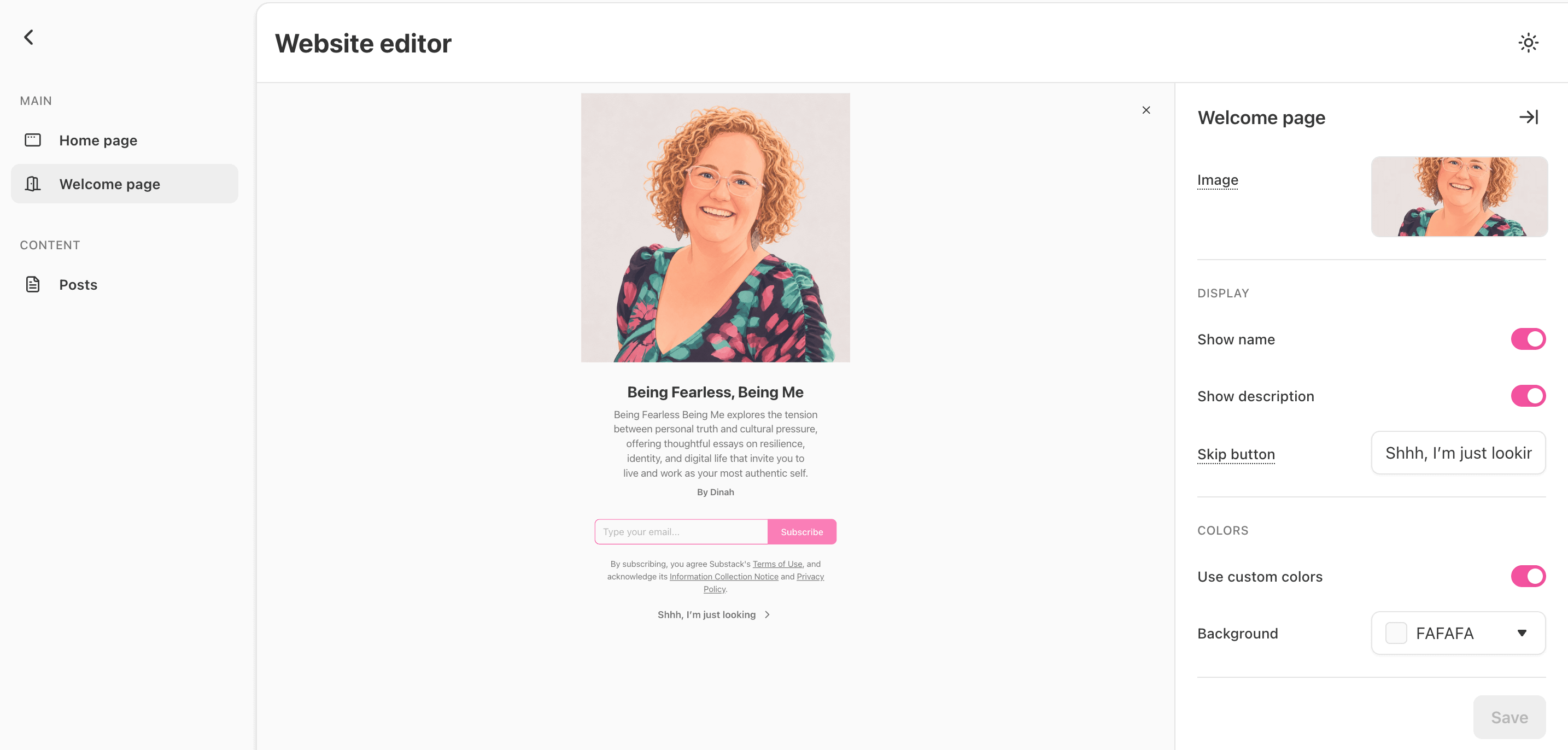
I spent way too long trying to figure this out, so consider this your shortcut.
What’s the best Skip-button text you’ve seen? I’m collecting favourites.
There is one more thing that can be on your welcome page. A recommendation, Blub!
Recommendation Blurbs
Hidden love letters from your readers live in the Recommendations section of your dashboard. Showing them off adds social credit without bragging.
When someone recommends your publication, they can include a short note called a recommendation blurb about why they love your work.
You can feature up to three of these at the bottom of your welcome page.
Here’s How:
On the left side panel of your dashboard, click Recommendations. (you will have to scroll down to the bottom of the left hand side panel to see it)
Scroll ALLLLLLLL the way to the bottom of that page.
Click Manage recommendations blurbs.
You might discover thoughtful notes readers have written when recommending your publication. Reading these for the first time honestly made my day. It really is such it’s such a lovely part of Substack that most people don’t know exists.
You can choose up to three blurbs to include on your welcome page.
Publishing Stories
Embedding a Post
It’s a great idea to include a few of your own related stories at the end of each post. Readers who make it all the way to the bottom are already engaged. This gives them an easy way to keep reading more of your work on the same topic.
I love this one because it’s an easy, elegant way to connect your stories without being pushy about it.
Here’s how:
Copy the URL of the story you want to share and paste it into your new post.
The link will automatically expand into a full image with a short blurb underneath. (This is the Large size.)
Hover over the embedded story until you see a small menu icon appear in the top-right corner.
Click that icon to choose your preferred size. I usually go with Medium.
By default, the text under the title (and beside the image) will be the first paragraph of your story.
Here’s the best part: you can click directly on that text and write your own custom summary instead.
A personalized summary not only looks cleaner, but it also gives you the chance to entice readers with the exact reason they’ll love that post.

Customize your SEO
Substack automatically pulls your title and subtitle of your post as the SEO description for search engines, but you can do better. Writing your own custom SEO blurb gives you control over how your story appears in search results, AI tools, and on social media.
Here’s how:
Copy your whole story.
Open your favourite AI tool (mine is ChatGPT).
Type:
“Generate custom SEO metadata: title + description optimized for Google and AI tools.”
Then paste your story below it.Go to your Substack post draft and click the Settings button in the lower-right corner.
Open the SEO dropdown.
Copy the SEO title and description from your AI tool into the text boxes, then hit Save.
Custom SEO makes your story easier to find, not just for algorithms, but for the real people searching for what you have to say.
Adding Byline Writers
Since Code Like A Girl is a publication where I publish other people’s work, I use Substack’s byline writer feature.
This isn’t something every Substack writer needs, but it’s becoming more common, especially as more people experiment with collaborative posts. Writing together is a great way to reach new readers and cross-pollinate audiences.
There are two ways to add byline writers on Substack. One is a little clumsy (and confusingly adds them as a comped paid subscriber), and the other is simple and intuitive.
The Clumsy Way
Here’s How:
In the bottom-left corner of your dashboard, click Settings.
Use your browser’s Find in Page (Cmd+F or Ctrl+F) to search for “Team.”
Beside Publication Team, click Invite.
Enter your collaborator’s email address.
(Annoying part: you have to ask them for it first.)
They’ll receive an invite to join your publication. Once they accept, they’ll appear in your publication settings as a writer and, for some mysterious reason, as a comped paid subscriber. Why? I have no idea.
Intuitive Way
Here’s How:
Start a new post for your collaboration.
Under the title area (where your name appears), click the small “+” beside your name.
Type your collaborator’s Substack profile name.
Select them from the dropdown.
A pop-up will appear — click “Add guest and send email.”
Once they accept, they’ll show up in your publication settings as a writer.
Optional: Display Writers on Your About Page
If you want to publicly list your collaborators or regular contributors (like we do on Code Like a Girl):
In the bottom-left corner of your dashboard, click Settings.
Use Find in Page to search for “Team.”
Find their name in the list and change the visibility from Private to Public.
If it’s just a one-off collaboration, keep it Private instead.
Back Up Posts and Subscribers
Since you’re putting so much effort into writing stories and building a following, it would be a shame to lose it all if something catastrophic happened. A few writers have reported losing stories or subscriber data due to platform glitches, so it’s worth taking a few minutes to back things up.
At least once a month, download both your posts and your subscriber list.
You can follow Substack’s instructions here to back up your subscriber list.
For your stories, I like to download them as PDFs.
It’s not glamorous, but it’s one of those grown-up things you’ll thank yourself for later.
Here’s How:
Open the post and use your browser’s Print option
Select Save as PDF.
It’s a small habit that can save you a lot of heartache later.
Control Your Feed
One of the things that makes Substack special is how personal your Notes feed can be. If you’re seeing too much of a specific topic (or a few voices that just aren’t your vibe), you can actually tell Substack to adjust what you see.
Here’s How:
On every note, look for the three little dots in the top-right corner. Click it.
From there, you can choose to:
Hide note
Select “Fewer notes like this” to see less of that topic (without hiding the person).
Snooze someone for 30 days if you just need a break.
Mute the author — This hides them from your feed but doesn’t block them.
Block them entirely if you never want to see their posts again.
It’s a minor feature, but it keeps your Notes feed feeling a lot more like your space.
Who to Follow
There are plenty of people on Substack who claim to know the secret to success here. Honestly, most of it is complete bullshit.
Engagement
When it comes to actually improving engagement with your audience, Mack Collier is the real deal. Here are two of my favourite posts from him. These are the ones I keep coming back to again and again.

For every article I write now, I ask ChatGPT to evaluate it using Mack’s Connect Deeper framework. It gives me thoughtful feedback on where my story could connect more deeply with you, the reader.
It’s the first time I’ve felt like I have a real editor giving me honest, constructive advice on how to make my writing more engaging.
Stats
The built-in stats on Substack are fine, but if you want all the details that don’t show up in the dashboard, Finn Tropy is your guy. His Substack Control Center browser extension gives you more insights than you ever thought you needed.
He’s also built an outstanding Notes Scheduler that I use for Code Like A Girl ! You can find both tools on Gumroad.
And if you want to see which Google searches are bringing people to your publication, set up Google Search Console. Really Good Business Ideas has a fantastic tutorial that walks you through the setup step-by-step.

Still Learning, Still Clicking
Ten months in, I’m still learning new things about this platform. That’s part of what I love about it. Substack keeps evolving, and so do the people who write here.
If you found even one tip in this post that makes your Substack life easier, I’ll count that as a win. And if you’ve discovered something I missed, please share it in the comments. I’d love to keep adding to this list.
I’m still figuring things out as I go, just like everyone else here. And that’s kind of the best part. Here’s to writing, learning, and finding our people, one post (and one hidden feature) at a time.
Subscribe to Being Fearless, Being Me
Being Fearless, Being Me is my place to write honestly about life’s big and small shifts. I share 2-3 stories a month about family, tech, identity, resilience, and what it means to live authentically in the middle of it all.
Related Stories
More stories about learning, unlearning, and building a healthier relationship with tech and life.
How I Broke Big Tech’s Grip on My Life in Four Steps

Have you ever searched for something and then seen an ad for that exact thing minutes later? Every time it happens to me, I get so creeped out! The reality is that Big Tech is watching every move we make and trying its best to monetize it.
In this post, I detail four steps you can take to make your life more private without throwing out your phone and moving to a cabin in the woods.
Every 30 Minutes, a New Memory: My MacBook’s Transformation

While sitting down to edit some stories for Code Like A Girl, I caught a glimpse of my Macbook wallpaper, and it hit me. While this wallpaper was a nice picture, I was pretty sure I had dozens of photos I had taken myself that would be as good or better. I could turn my MacBook wallpaper into a digital photo album of all the amazing places I have seen instead of this stock photo Apple had supplied!
Divorced from Google, Now Dating an iPhone

After 18 years of BlackBerry loyalty and a long love affair with Google, I finally switched to an iPhone. Here’s why privacy, trust, and values changed my mind.
Great article Dinah! I thought I had a handle on most of Substacks quirks, but you proved there is always something new to learn! Thanks!
These are great tools. Now I'll need to take some time with them (because i haven't till now). Happy Thursday!